Sensor Contact Closures
You can configure the Paging Relay to play a locally stored audio file, a Revolution notification, or play both a local audio file and a notification when triggered by a sensor. For example, when you walk through the door at a store, an infrared sensor is triggered that causes a tone to play on an overhead analog speaker system. This tone comes from an audio file stored on the Paging Relay device.
Sensor configuration varies depending on the use case. Let's walk through some sensor contact closure use cases.
 Play a tone when a customer enters your business
Here's the scenario: Someone comes through the door of your business. A tone plays over analog overhead speakers to alert staff that a customer is in the building.
- You'll have some sort of motion detector that detects when someone has crossed the entrance threshold.
- Connect your analog speakers to your paging amplifier, which is then connected to the Paging Relay device using the Line Out jack or 600 Ohm connectors. (See Analog / IP Integration.)
- Connect the motion detector to the Paging Relay device using Pins 1 & 2. (See Sensor Contact Closure Configuration > Connect devices.)
- Enable Play Audio Locally. (See Sensor Contact Closure Configuration > Configure sensor triggers.)
- Upload the audio file the Paging Relay will play. (See Sensor Contact Closure Configuration > Upload audio.)
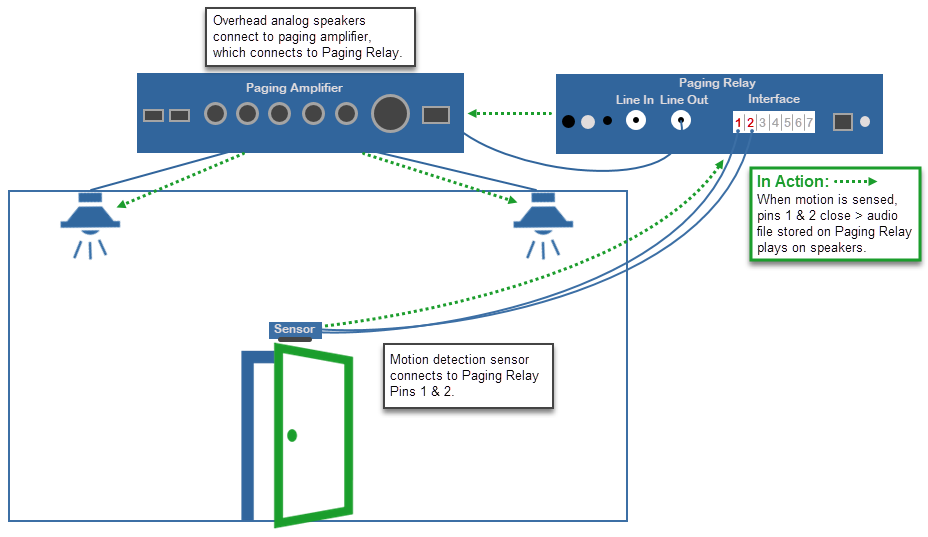
If your business has more than one entrance and you want a tone to play over all of them, you could:
- Connect the motion detectors and speakers together using a bank of relays. Connect one of those relays to the Paging Relay device. The same audio file is played any time any of the configured entrances are crossed.
- Use a Paging Relay device for each entrance so that each one has its own tone to let staff know which entrance the customer came through.
Alert staff if patients leave their room at night
Here's the scenario: A patient wanders into a nursing home hallway late at night. A notification is played over an IP speaker at the nursing station.
- You'll have some sort of motion detector that detects when someone is in the hallway.
- Connect the motion detector to the Paging Relay device using Pins 1 & 2. (See Sensor Contact Closure Configuration > Connect devices.)
- Enable Play Audio via Multicast. (See Sensor Contact Closure Configuration > Configure sensors triggers.)
- Enter a multicast IP address and port number for the IP speaker to listen for. (See Sensor Contact Closure Configuration > Configure sensors triggers.)
- Upload the audio file the Paging Relay will play. (See Sensor Contact Closure Configuration > Upload audio.)
- Configure the IP speaker to listen to the multicast IP address and port number configured.
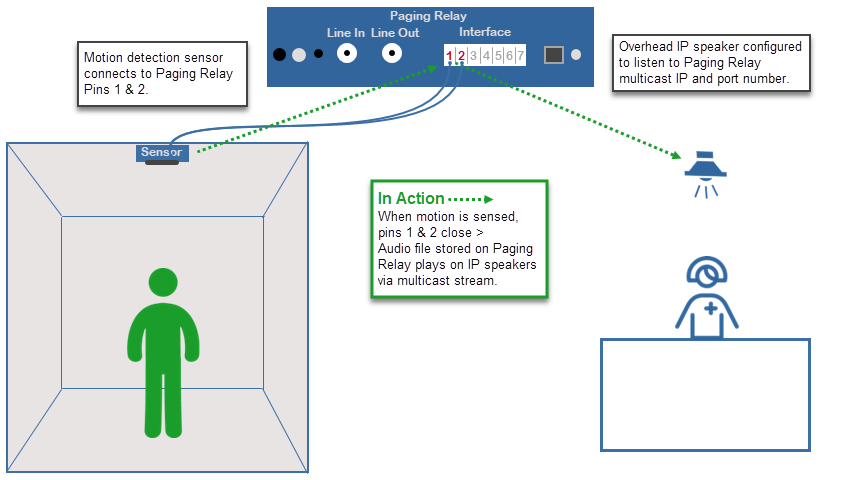
A customer pushes a help button
Here's the scenario: A customer pushes a help button. Notification is sent to the department work station that a customer is waiting for assistance.
- Connect help button to Pins 1 & 2 on the Paging Relay device. (See Sensor Contact Closure Configuration > Connect devices.)
- In Revolution, create a notification. Assign the Paging Relay:GPI as the notification trigger. Assign the workstation phones as endpoints.
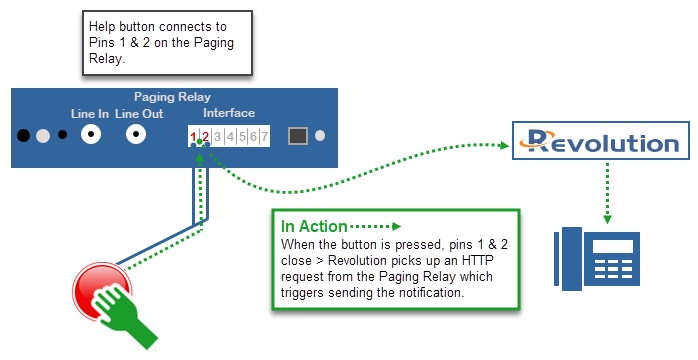
- In this scenario, neither Play Audio Locally nor Play Audio via Multicast are enabled in the Paging Relay interface. Sensor Multicast Audio Address and Sensor Multicast Audio Port are prepopulated by default. Since a speaker is not used in this scenario, these settings are not needed and are ignored.
- A Paging Relay device is needed for each help button in order to know the location, so personnel know which department to go to.
See the Relay Contact Closure 'A school lockdown' example for a sensor contact closure (panic button) used with relay contact closures (locking doors and windows and turning on a strobe light).
Now, let's configure the Paging Relay.

